Resources is where your team keeps shared documents, photos and videos: policies, procedure templates, property files and anything else people need in the field. The new Resources view makes it quicker to organize folders and upload files from a computer or a phone.
In this article
- Turn on the new Resources view
- Find your way around
- Create a folder
- Upload files
- Rename, move and see version history
- Archive and restore
- Delete a folder or file
- Common questions
Turn on the new Resources view
- Select Resources in the left menu.
- At the top right, switch on Try the new Resources view.
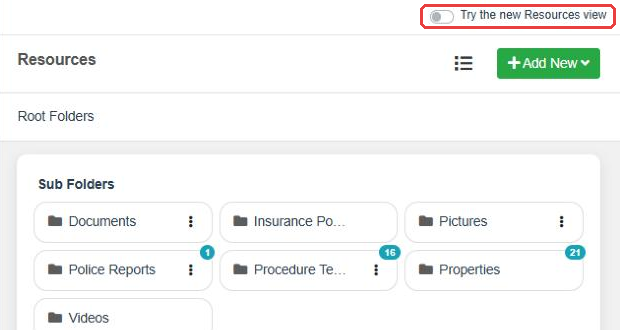
You can go back at any time with Back to classic view in the same spot. Your folders and files are the same in both views.
Find your way around
On a computer
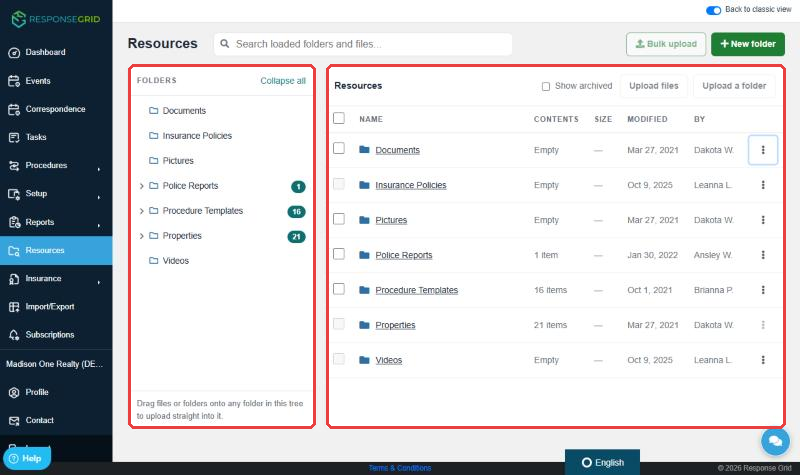
The Folders panel on the left shows your whole folder tree. Select a folder to see what's inside on the right, where you can sort by name, contents, size, date modified and who made the change. The path at the top of the list shows where you are; select any part of it to jump back up.
On a phone
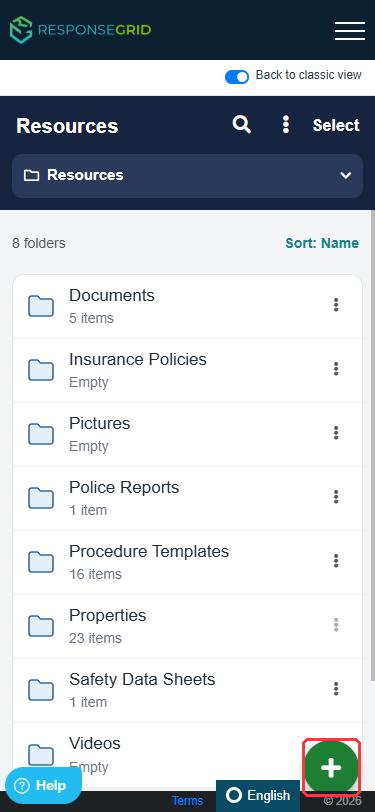
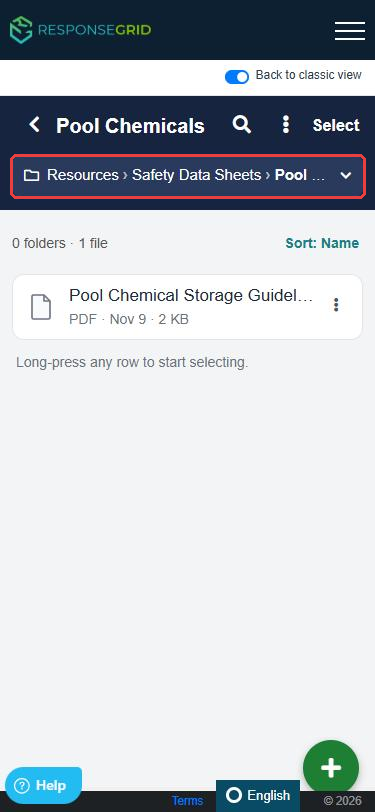
Folders appear as a list. Tap a folder to open it, and tap the path bar under the page title to jump back to any folder above. Use the green + button to add folders or files.
Create a folder
On a computer
- Open the folder where the new folder should go (or stay at the top level).
- Select New folder.
- Type a name and press Enter, or select the green check mark.
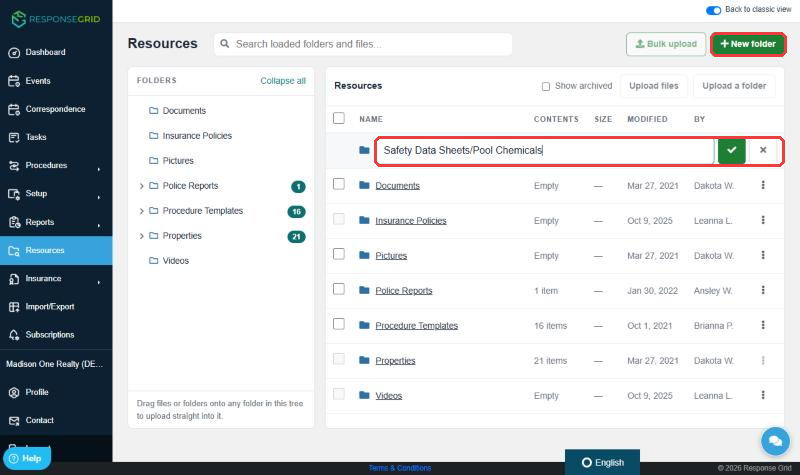
Create several levels at once: type a slash between names. For example, Safety Data Sheets/Pool Chemicals creates a Safety Data Sheets folder with a Pool Chemicals folder inside it.
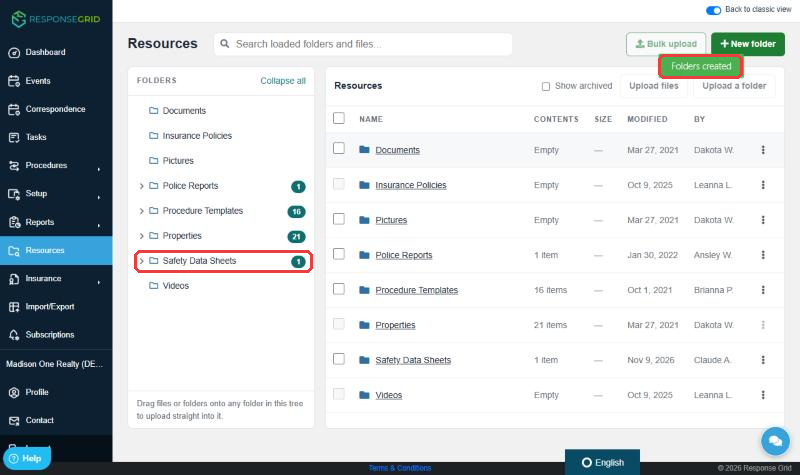
To add a folder inside an existing one without opening it, select the ⋮ menu on that folder and choose New subfolder.
On a phone
- Open the folder where the new folder should go.
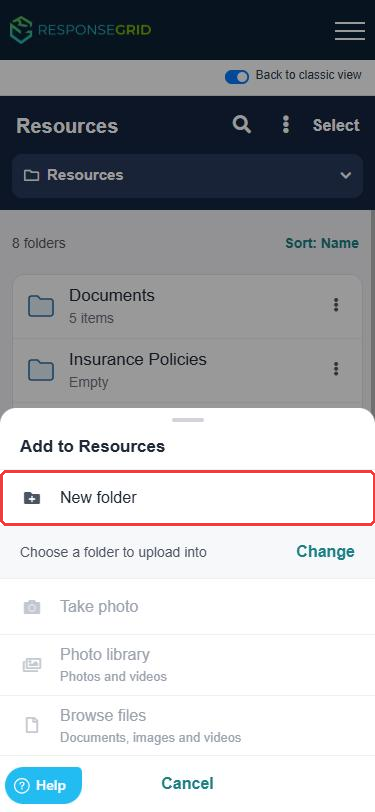
- Tap the green + button, then New folder.
- Enter a name and confirm.
Upload files
You can upload PDFs, Word, Excel, PowerPoint and text files, images (including iPhone HEIC photos) and videos (MOV, MP4 and WebM). Files always go into a folder, so open one first.
On a computer
- Open the folder you want to upload into.
- Select Upload files to choose one or more files, or Upload a folder to bring in a whole folder from your computer, including its subfolders.
- A progress panel appears at the bottom right and shows when each upload is complete.
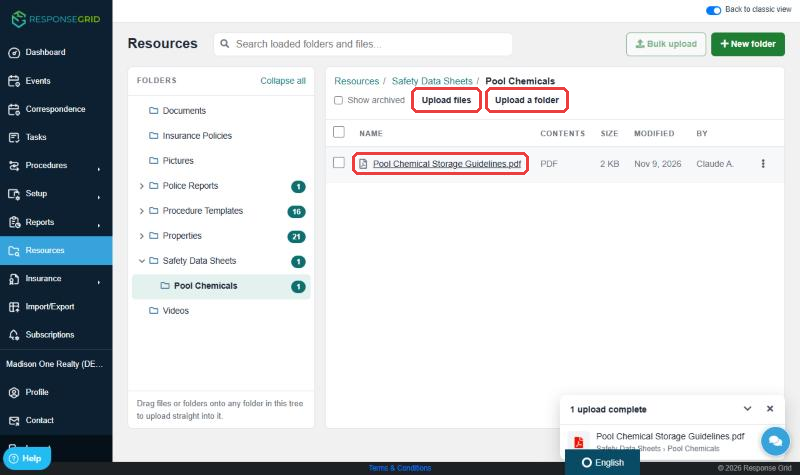
Drag and drop: you can also drag files or folders from your computer straight onto any folder in the left-hand tree.
On a phone
- Open the folder you want to upload into.
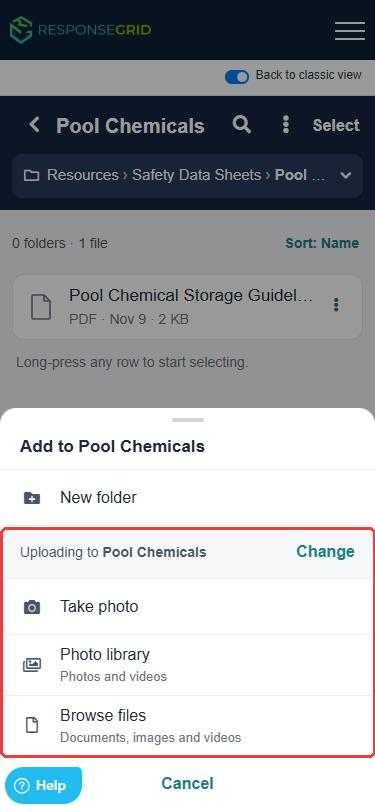
- Tap the green + button.
- Choose Take photo, Photo library or Browse files.
The menu shows which folder you're uploading to. Tap Change to pick a different one.
Rename, move and see version history
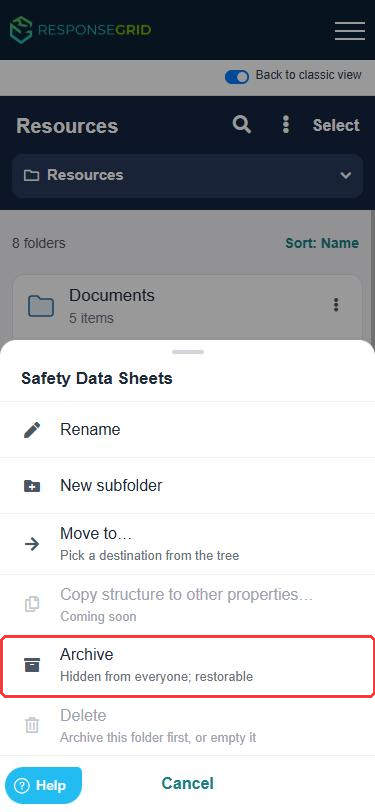
Every folder and file has a ⋮ menu at the end of its row. On a phone, tap ⋮ to open the same options at the bottom of the screen.
- Rename: change the name.
- Move to…: pick a new location from the folder tree.
- Version history (files only): download or restore an earlier version of the file.
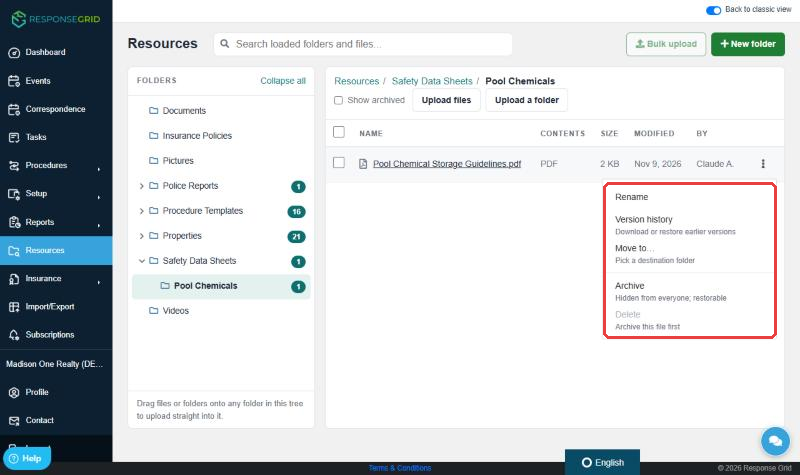
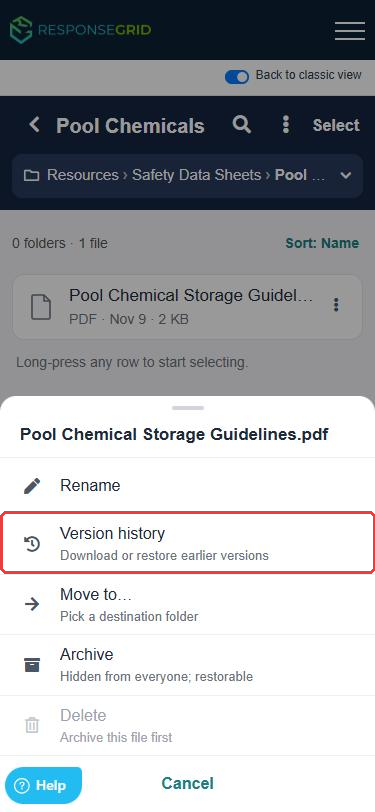
Copy structure to other properties is marked Coming soon and isn't available yet.
Archive and restore
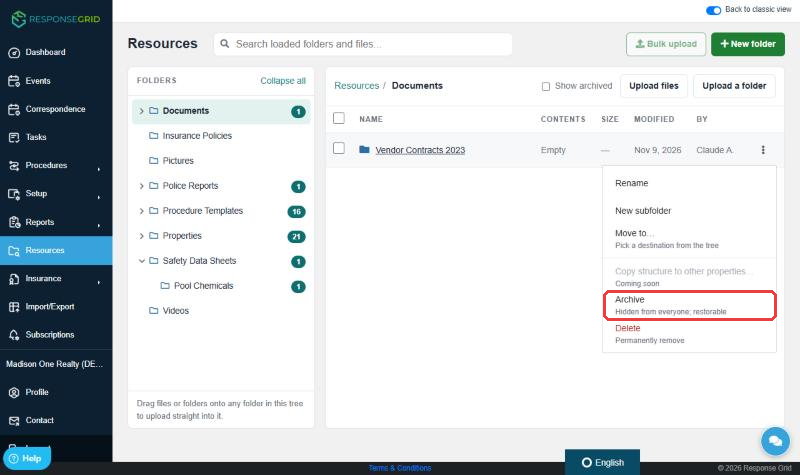
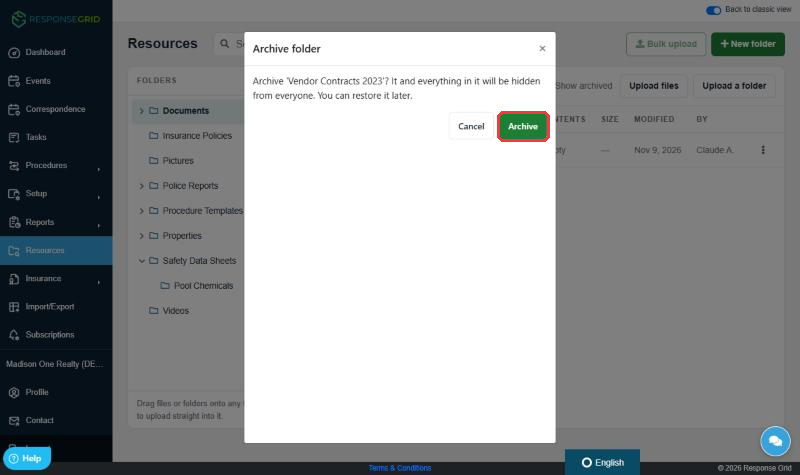
Archiving hides a folder or file from everyone without deleting it, so it's the safe way to retire old material. An archived folder hides everything inside it too.
Archive a folder or file
- Select the ⋮ menu on the folder or file.
- Choose Archive.
- Confirm by selecting Archive again.
See and restore archived items
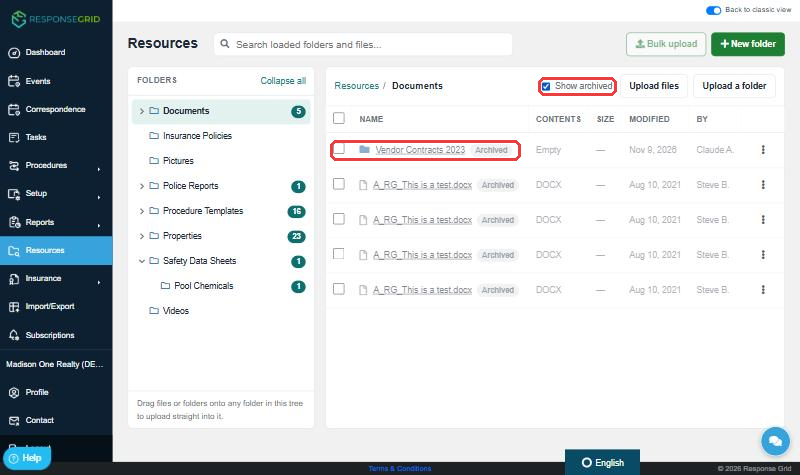
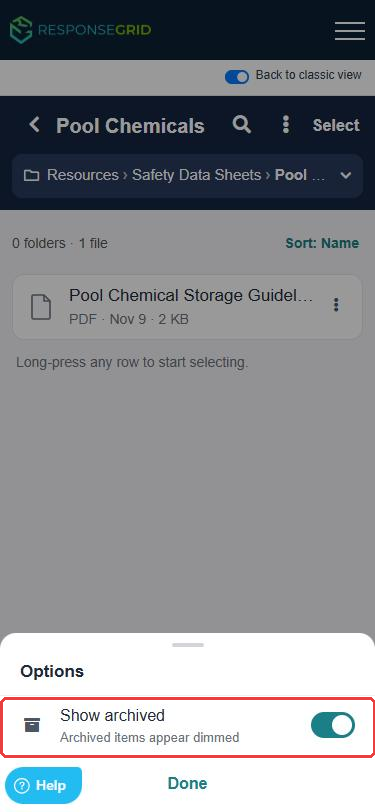
- On a computer, tick Show archived above the list. On a phone, tap ⋮ next to the page title and switch on Show archived.
- Archived items appear dimmed with an Archived label.
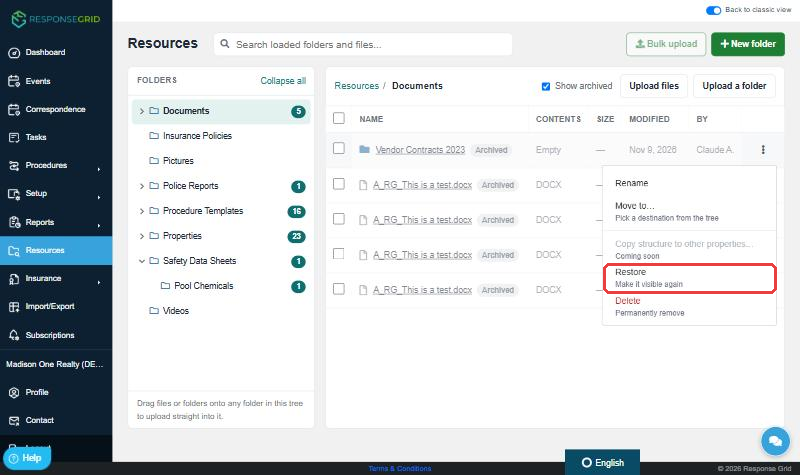
- To bring one back, select its ⋮ menu and choose Restore.
Delete a folder or file
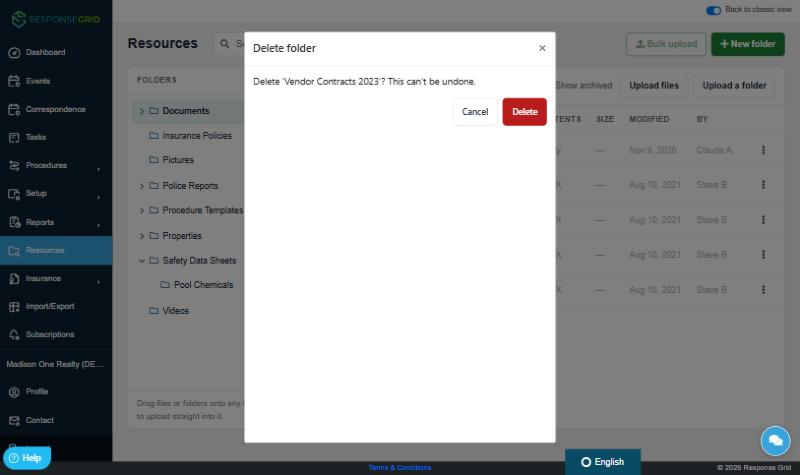
Deleting is permanent and can't be undone, so ResponseGrid asks you to archive first:
- Folders can be deleted when they're empty or already archived.
- Files must be archived before they can be deleted.
If Delete is greyed out, archive the item first (or empty the folder), then select ⋮ and choose Delete. You'll be asked to confirm.
Common questions
Who can see Resources?
All users in your company can see and use Resources.
Why can't I select or change some folders?
Some built-in folders, such as Properties, are managed by ResponseGrid and can't be renamed, moved or archived.
Can I upload a lot of files at once?
Yes. Select several files in Upload files, or use Upload a folder. A dedicated Bulk upload tool is coming soon.
I archived something by mistake. What now?
Nothing is lost. Turn on Show archived, find the item and choose Restore.
Can I go back to the old view?
Yes. Select Back to classic view at the top of the page.


Was this article helpful?
That’s Great!
Thank you for your feedback
Sorry! We couldn't be helpful
Thank you for your feedback
Feedback sent
We appreciate your effort and will try to fix the article